How to get the transcript of a YouTube video
Open the video, click the SubExtractor icon and choose Site Captions. The captions the video already has appear in the side panel as a timed transcript you can search, copy or download. It takes about a second and costs nothing.
Add SubExtractor to Chrome Free. No account.
Steps
- Add SubExtractor to Chrome. It is free and asks for no account.
- Open the video. Any YouTube video that has captions will do. It does not need to be playing.
- Click the SubExtractor icon and choose Site Captions. The side panel opens and lists the captions, each line with its time.
- Find what you need. Type in the search box to highlight every match, or click a line to jump the video to that moment.
- Take it with you. Copy the whole transcript, or open the menu to download it as TXT, SRT, VTT or JSON.
What you get
The side panel shows every caption line with its timestamp, in order. Nothing is re-transcribed: these are the words the video's own caption track contains, so they are as accurate as the captions themselves.
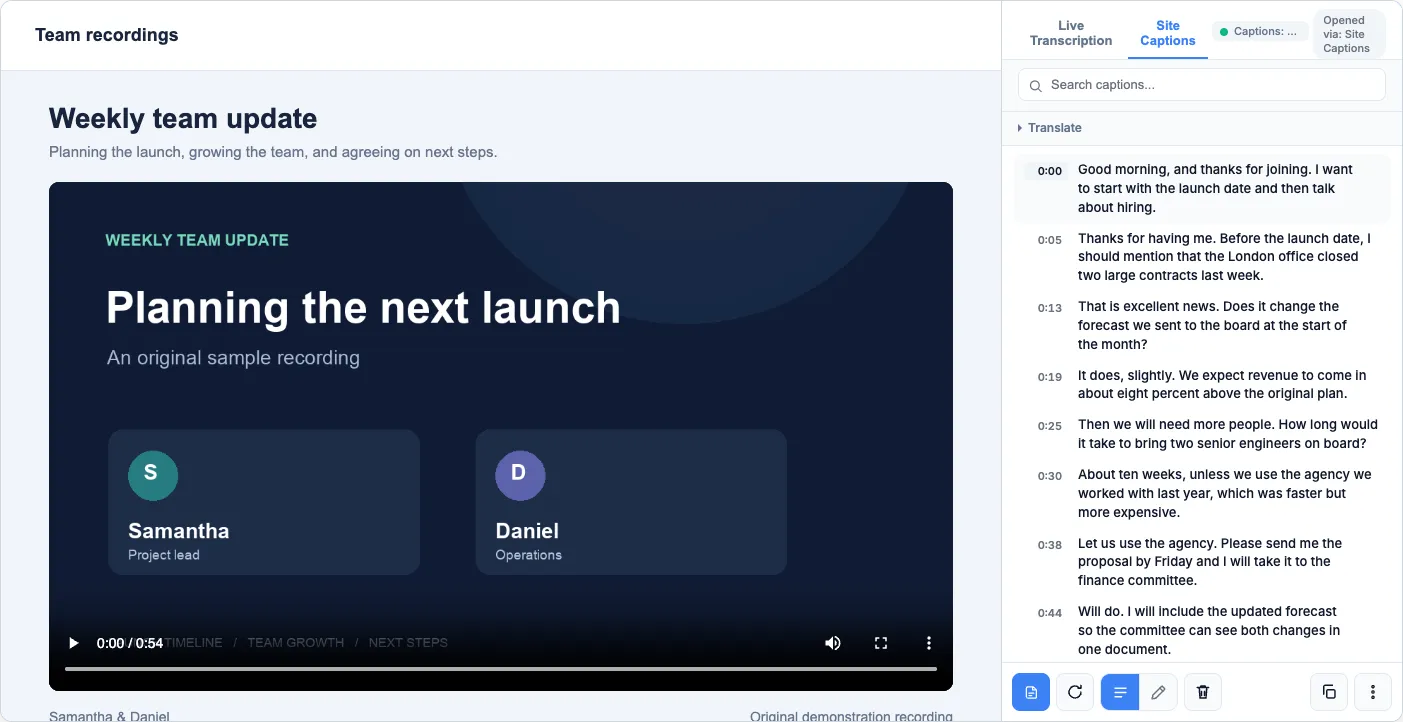
Search it instead of scrubbing
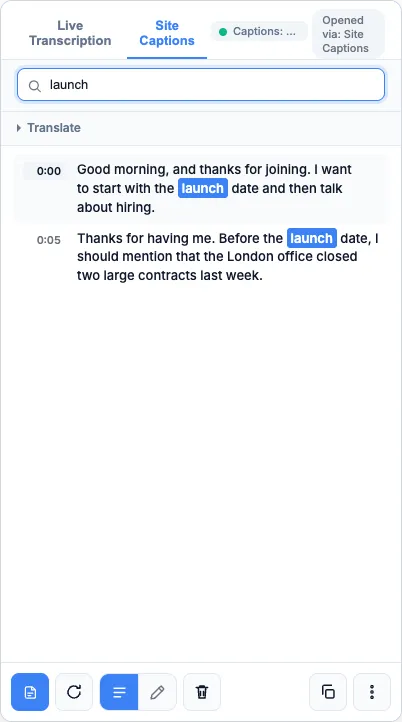
Type a word or phrase in the search box and every match is highlighted, with the rest of the transcript filtered away. Click any line and the video jumps to that moment. Turn on Follow in the menu and the current line stays highlighted while the video plays.
Copy it or download it
The copy button puts the whole transcript on your clipboard. The menu beside it downloads the transcript as plain text, as SRT or VTT subtitles, or as JSON, and can copy it with timestamps. The export guide explains which format suits what.
Beyond YouTube
The same button works on TED, Vimeo, Dailymotion, CNN, jw.org, and on pages that use standard caption tracks. Support depends on how each site publishes its captions, so it varies from site to site. On YouTube you can also show two subtitle languages over the video at once.
When there are no captions to read
Some videos carry no caption track at all. For those, SubExtractor can transcribe the audio as it plays, on your own computer.
Common questions
- Does the video have to play all the way through?
- No. Site Captions reads the caption track the video already carries, so the whole transcript appears at once, usually in about a second.
- What if the video has no captions?
- Then there is no track to read. Use Live Transcription instead: SubExtractor listens to the tab and writes down what is said as the video plays.
- Which languages does it work with?
- Any language the video offers captions in. Extraction does not depend on the eight languages that live transcription supports.
- Can I get the transcript in another language?
- Yes, where Chrome's built-in translator is available. Open Translate in the side panel and pick a language; you can show the translation alone or beside the original.
- Is there a limit on how many videos I can do?
- No. There is no quota, no trial and no account.