How to transcribe a video that has no captions
Open the video, click the SubExtractor icon, choose Live Transcription and press Start Capture. SubExtractor listens to the tab and writes down what is said as it plays, using speech recognition that runs on your own computer.
Add SubExtractor to Chrome Free. No account.
Steps
- Add SubExtractor to Chrome. It is free and asks for no account.
- Open the page that plays the video or audio. A lecture, a webinar, a podcast, a meeting recording: anything a Chrome tab can play.
- Click the SubExtractor icon and choose Live Transcription. The side panel opens on the Live Transcription tab.
- Download a language pack, once. Pick the language spoken in the video. The pack is stored on your computer and reused from then on.
- Press Start Capture and play the video. A live draft appears as people speak and settles into finished lines, each with its time.
- Press End Capture when you are done. Then search, edit, clean up, copy or download the transcript.
What it looks like
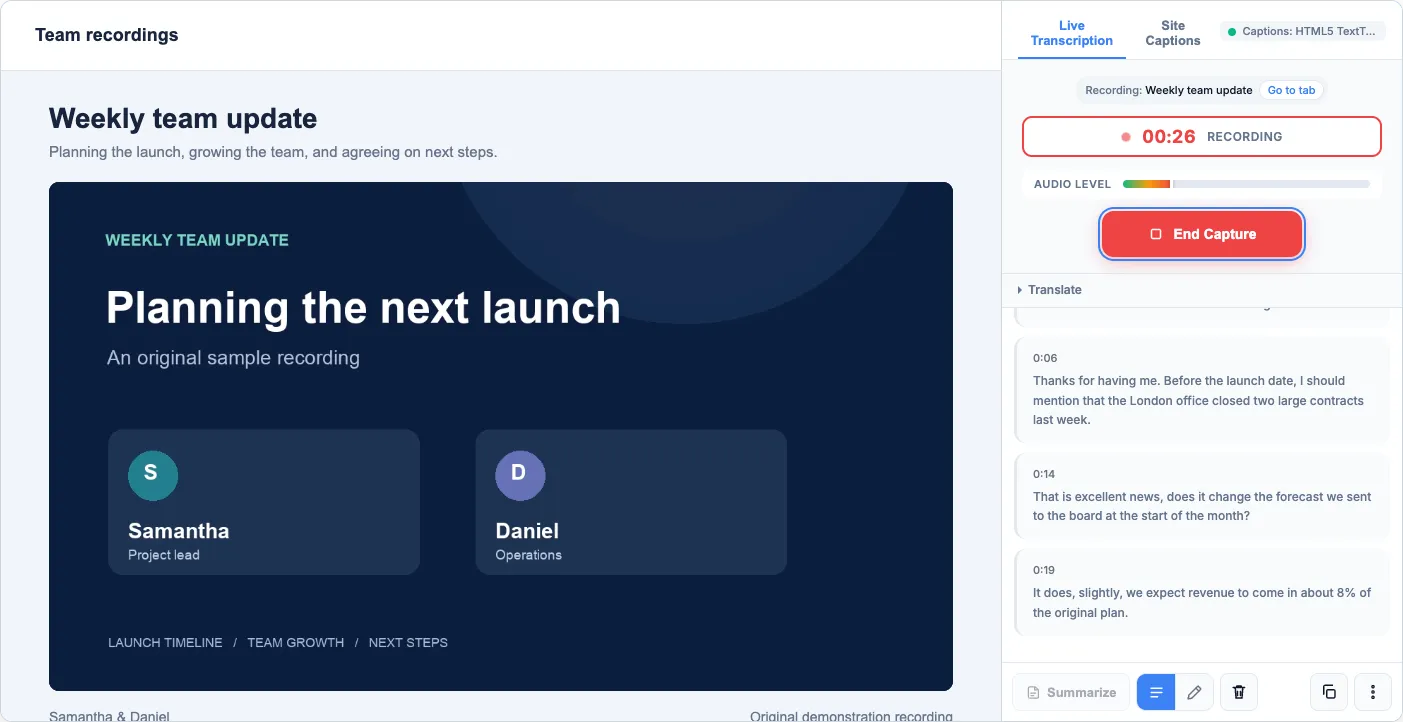
While the tab plays, the newest words show as a live draft at the top of the panel. When a phrase is finished it becomes a line in the transcript with its time in the recording.
Languages and language packs
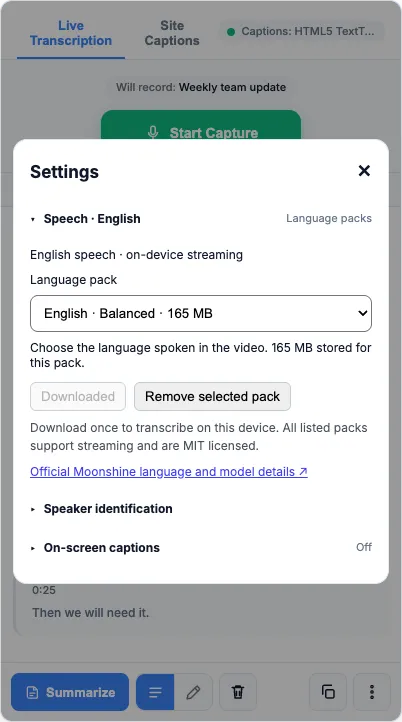
Live transcription works in 8 languages: Arabic, English, German, Japanese, Mandarin, Spanish, Tagalog, Vietnamese. Each needs a language pack, which is the speech model for that language. You download it once and it stays on your computer until you remove it.
| Language | Packs |
|---|---|
| English | Lighter 51 MB · Balanced 165 MB · Higher accuracy 305 MB |
| German, Japanese, Spanish | Lighter 32 MB · Balanced 122 MB |
| Arabic, Mandarin, Tagalog, Vietnamese | Lighter 32 MB |
A lighter pack is quicker and kinder to an older computer; a larger one makes fewer mistakes. If the panel warns that the device is falling behind, stop and switch to the lighter pack.
What it can and cannot do
- It works on anything a tab can play, including sites with no captions and pages SubExtractor has never heard of.
- It records one tab at a time, and that tab has to keep playing.
- It is real time. There is no way to upload a file and get the text back faster.
- It keeps the original sound playing, so you can listen while it writes.
After the recording
Switch to edit mode to correct a word. Where Chrome's built-in AI is available, Clean up fixes punctuation and capitals, and Summarize gives a short overview with key points. Then download the transcript in the format you need. For recordings with more than one person, turn on speaker labels first.
Common questions
- Is my audio sent anywhere?
- No. The speech recognition model runs inside your browser. The only download is the language pack itself, once.
- Can it transcribe faster than real time?
- No. It listens to the tab as it plays, so an hour of video takes an hour. If the video already has captions, extracting them is instant instead.
- Does it detect the language automatically?
- No. You choose the spoken language in Settings and download its pack. Switching language means choosing another pack.
- Can it transcribe a meeting or a webinar?
- Yes, if it runs in a Chrome tab. SubExtractor records the sound of that tab, whatever the page is.
- How accurate is it?
- It handles clear speech well and makes mistakes on names, overlapping voices, heavy accents and speech under music. English has a Higher accuracy pack; for the other languages the Balanced pack is the most accurate one available.