How to translate video captions and transcripts
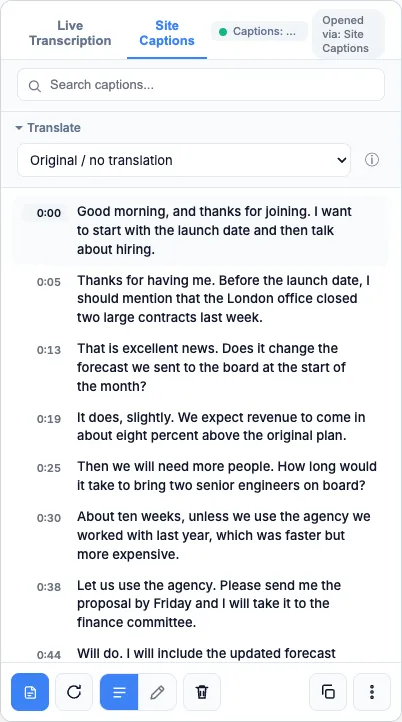
Open Translate in SubExtractor's side panel and pick a language. The transcript is translated on your device with Chrome's built-in translator, and you can show the translation alone or beside the original.
Add SubExtractor to Chrome Free. No account.
Steps
- Get a transcript first. Extract the video's captions with Site Captions, or record it with Live Transcription.
- Open Translate at the top of the side panel. Choose the language you want to read.
- Let Chrome prepare the language. The first time you use a language pair, Chrome downloads its own translation model. After that it is instant.
- Choose what to see. Show the translation on its own, or both languages together, line by line.
- Export if you need to. Downloads follow what is on screen, so a two-language view gives a two-language subtitle file.
Translating a transcript
Translate sits above the transcript on both tabs of the side panel. It works on captions extracted from a video and on a live recording, including while the recording is still running.
Two languages at once
Showing both languages puts the original and the translation together on each line, which is the useful view for language learners and for checking a translation against what was said. On YouTube, SubExtractor can also draw both subtitle languages over the video itself.
Translating live captions
Live captions can be translated as they appear. Set the caption language in the popup and the box over the video shows the translation, the original, or both.
What it depends on
Translation comes from Chrome, not from SubExtractor. It needs Chrome's built-in translator, which Chrome provides on supported desktop devices in recent versions and which downloads a model the first time a language is used.
Translation quality is that of a compact on-device model: good for following what is said, not a substitute for a professional translation.
Common questions
- Is the text sent to a translation service?
- No. SubExtractor uses the translator built into Chrome, which runs on your device.
- Why is there no Translate option on my computer?
- Chrome's built-in translator needs a recent version of Chrome on a supported desktop device. Where Chrome does not provide it, SubExtractor cannot offer translation; extraction, transcription and export still work.
- Which languages can it translate between?
- Whichever pairs Chrome's translator supports on your device. The language list in the side panel shows what is available to you.
- Can I translate the captions shown over the video?
- Yes. In the popup, set the caption language and choose Original, Translation only, or Original + translation.
- Can the translation be read aloud?
- Yes. Read captions aloud speaks them in your caption language, which makes a foreign-language video listenable in your own.