Live captions for any video in Chrome
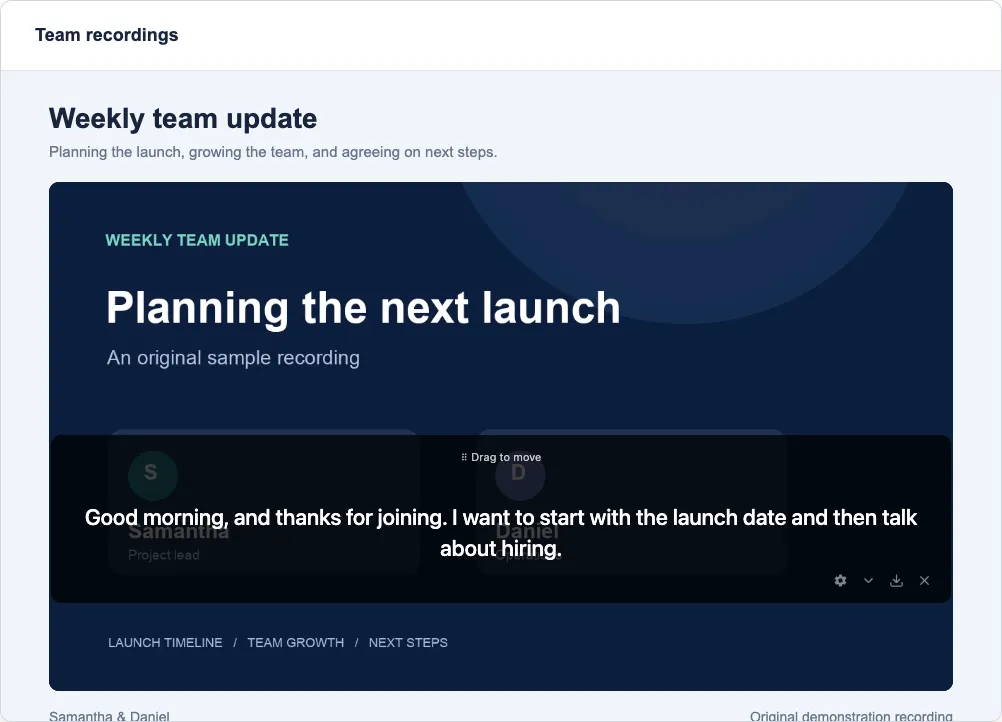
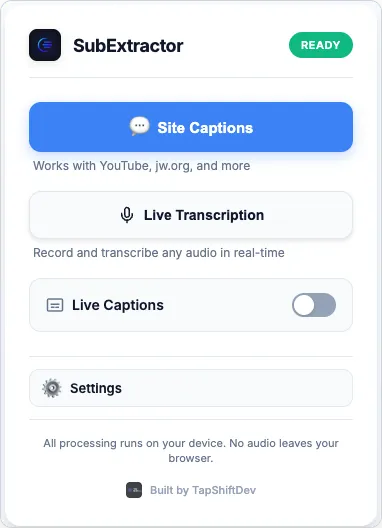
Click the SubExtractor icon and turn on Live Captions. A caption box appears over the page and shows what is being said as the video plays. You can drag it anywhere, translate it, or have the captions read aloud.
Add SubExtractor to Chrome Free. No account.
Steps
- Add SubExtractor to Chrome and download a language pack for the language spoken in your videos. The welcome page offers this on first install.
- Open the video and click the SubExtractor icon. The popup shows a Live Captions switch.
- Turn Live Captions on. A caption box appears over the page and fills in as people speak.
- Drag the box where you want it. It keeps that position for next time.
- Turn the switch off, or close the box, to stop. The video carries on playing.
Captions on the page itself
The caption box floats over whatever the tab is showing, so it works the same on a video site, a webinar or a web meeting. The words come from speech recognition running in your browser; nothing is sent away to be captioned.
In your own language
The popup's caption language setting can show the original words, a translation only, or both together. Translation uses Chrome's built-in translator and stays on your device. The translation guide covers what it needs.
Read aloud
SubExtractor can speak the captions in your caption language. You choose a female or male voice and the pace, and whether the video's own sound stays normal, drops to quiet, or is switched off while the captions are spoken. The voice is a one-time download of about 80 MB and runs on your computer.
Languages
Live captions use the same language packs as live transcription, in eight spoken languages. The transcription guide lists them with their sizes.
Common questions
- Does it work on sites that have no captions of their own?
- Yes. Live captions are made from the sound of the tab, so they do not depend on the site providing anything.
- Can I change how the captions look?
- Yes. The gear on the caption box sets the font size, the font colour and opacity, and the background colour and opacity.
- Can I keep the captions as a transcript?
- Yes. Start a recording from Live Transcription instead and the captions over the video are also collected in the side panel, where you can search and export them.
- Can I record a transcript without captions covering the video?
- Yes. In the side panel's Settings, under On-screen captions, turn off "Show captions when recording starts".