How to see who said what in a recording
Turn on Label speakers in SubExtractor's Settings, then start a recording. Each turn in the transcript is tagged Speaker 1, Speaker 2 and so on, worked out on your own device from the sound of the voices.
Add SubExtractor to Chrome Free. No account.
Steps
- Open the side panel on Live Transcription and choose Settings from the menu.
- Open Speaker identification and turn on Label speakers. The first time, SubExtractor downloads the voice models (8.6 MB).
- Start a new recording. The setting applies from the next recording, not one already running.
- Read the labels as they appear. Each line carries a tag such as Speaker 1 or Speaker 2. Labels can change for a few seconds as more of the conversation is heard.
- Export. The labels are kept when you copy or download the transcript.
What the labels look like
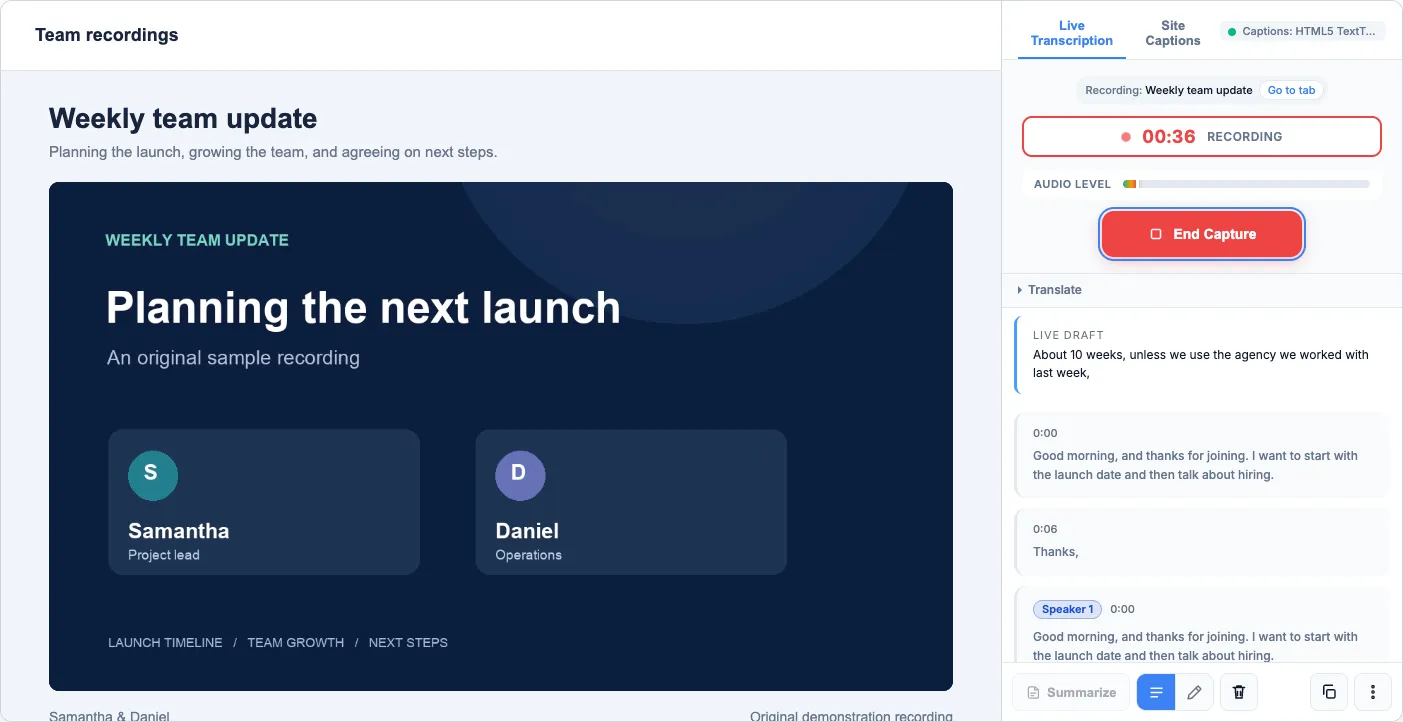
Each transcript line gets a coloured tag in front of its timestamp. When two people share one stretch of speech, SubExtractor splits it into a row for each voice, so a quick exchange reads as a conversation instead of one block.
What it is for
- Meetings and calls that run in a browser tab.
- Interviews and panel discussions, where the question and the answer need telling apart.
- Podcasts with two or more hosts.
Labels are for live transcription. Captions extracted from a video keep whatever speaker names the caption track itself contains.
Getting cleaner labels
- Let the recording run. The first minute is the least certain, while each voice is still new.
- Clear audio helps more than anything else: music and background noise blur voices together.
- Use the Balanced or Higher accuracy language pack if your computer keeps up with it.
In your exports
Copied text and TXT downloads group each speaker's lines under their label. SRT and VTT subtitles put the label at the start of each cue, and JSON carries it as a field. See the export guide.
Common questions
- Does it know who the speakers are?
- No. It tells voices apart and numbers them in the order they first speak. It does not identify people or attach names.
- Why did a label change after it appeared?
- The labelling improves as it hears more of each voice, so an early guess can be corrected a few seconds later. The words do not change, only the tag.
- How accurate is it?
- It is good at clearly different voices taking turns. It is less reliable when people talk over each other, when two voices are very alike, or on short interjections. Where one speaker hands over to the next, a few words can land on the wrong side.
- Does it slow transcription down?
- A little. Speaker labelling is extra work for your computer, so on an older machine captions may lag slightly more with it on.
- Is voice data stored or uploaded?
- No. Voices are compared on your device for the length of the recording. Nothing is uploaded and no voice profile is kept.