How to download subtitles as SRT, VTT, TXT or JSON
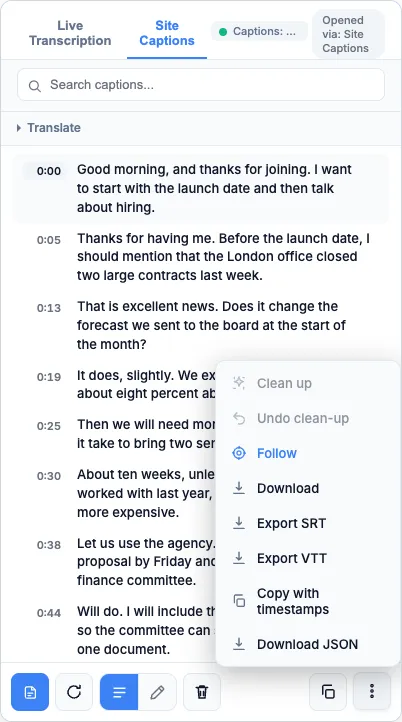
Open the menu in SubExtractor's side panel and choose Export SRT, Export VTT, Download or Download JSON. The file contains the transcript on screen, with timestamps in every format except plain text.
Add SubExtractor to Chrome Free. No account.
Steps
- Get the transcript into the side panel. Use Site Captions for a video that has captions, or Live Transcription for one that does not.
- Open the menu at the bottom right of the panel. It is the button with three dots.
- Choose a format. Download for plain text, Export SRT or Export VTT for subtitles, Download JSON for data.
- Find the file in your downloads. Nothing else is needed: there is no export limit and no watermark.
Which format to choose
| Format | Contains | Use it for |
|---|---|---|
| TXT | Plain text, no timings | Reading, quoting, pasting into notes or a document. |
| SRT | Numbered cues with start and end times | Video editors and most players. The most widely accepted subtitle format. |
| VTT | WebVTT cues with start and end times | Web video: the format HTML5 players and many platforms expect. |
| JSON | Each line with its timing as structured data | Scripts, spreadsheets and anything you want to process yourself. |
Copying instead of downloading
The copy button puts the transcript on your clipboard as plain text. Copy with timestamps, in the menu, keeps the time in front of each line, which is handy for notes that need to point back into the video.
Subtitles for a video that had none
Recording a video with Live Transcription and exporting SRT gives you a subtitle file for a video that never had one. Start the recording as the video starts so the timings line up, and read the result through before publishing it: speech recognition makes mistakes that a caption file should not carry.
Common questions
- Do the subtitle timings match the video?
- For extracted captions, yes: they are the video's own timings. For a live recording, timings count from the moment the recording started, so they line up with the video if you started both together.
- Can I edit the text before exporting?
- Yes. Switch the transcript to edit mode, fix what you want, and the export uses your text.
- Can I export a translation?
- Yes. Exports follow what the panel is showing. With both languages on screen, each subtitle cue contains both lines.
- Are speaker labels included?
- Yes, when the recording was made with speaker labels on. Text exports group lines by speaker, and SRT and VTT start each cue with the label.
- Is there a length limit?
- No. There is no cap on transcript length or on the number of exports.